فئات
أحدث بلوق
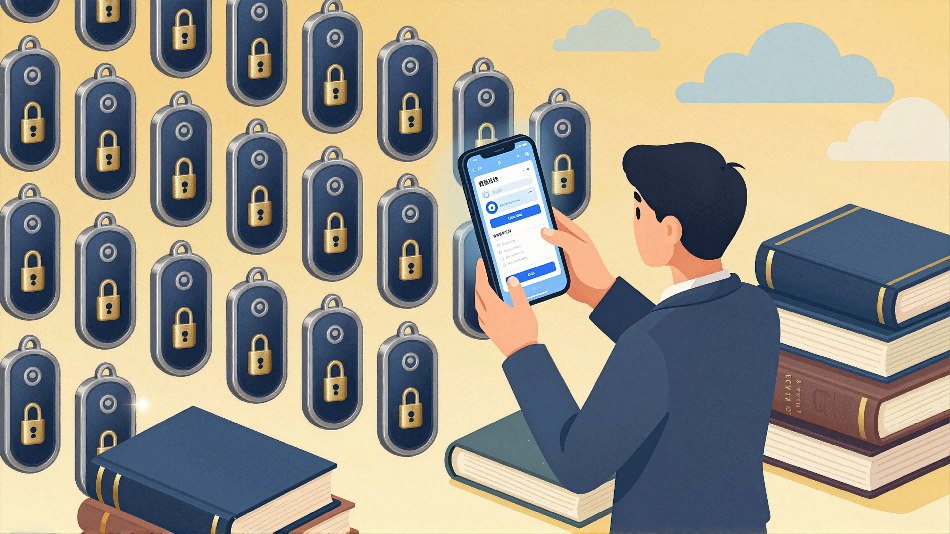
كيفية إيقاف تشغيل القفل الذكي: الدليل الكامل خطوة بخطوة
ميزة القفل الذكي هي ميزة مفيدة تُبقي هاتفك مفتوحًا في المواقف التي تثق بها، مثل وجودك في المنزل، أو اتصالك بجهاز بلوتوث موثوق، أو حمل هاتفك معك. ولكن إذا كنت تُقدّر الخصوصية بشكل أكبر، أو لاحظت أعطالًا مزعجة، أو أردت ببساطة التحكم الكامل في أمان جهازك، فاعلم أن معرفة كيفية إيقاف تشغيل القفل الذكي الأمر ضروري تماماً.
في هذا الدليل، سنوضح لك كيفية تعطيل ميزة القفل الذكي على أجهزة أندرويد، وسامسونج، وآيفون، وحتى في متصفح جوجل كروم وحسابك على جوجل. كما سنتناول المشكلات الشائعة ونصائح الأمان لمساعدتك في الحفاظ على أمان جهازك.
يستخدم القفل الذكي عدة شروط لإبقاء جهازك مفتوحًا تلقائيًا:
1. الأجهزة الموثوقة (مكبرات صوت بلوتوث، ساعات ذكية، سيارات)
2. الأماكن الموثوقة (منزلك أو مكان عملك)
3. الكشف عن الهاتف على الجسم (أثناء حمله أو مسكه)
4. التعرف الموثوق على الوجه أو الصوت
يختار العديد من المستخدمين إيقاف تشغيل القفل الذكي للأسباب الرئيسية التالية:
1. تحسين الأمن والخصوصية في الأماكن العامة
2. فتح القفل غير المقصود عند ترك الهاتف دون مراقبة
3. أعطال تتسبب في بقاء الهاتف مفتوحًا بشكل غير صحيح
4. استنزاف البطارية بسبب الموقع الثابت أو اكتشاف البلوتوث
5. تفضيل سلوك القفل/الفتح اليدوي
فيما يلي شرح مفصل خطوة بخطوة لأكثر الأجهزة والتطبيقات شيوعًا - مُنظمة في جدول للرجوع السريع:
|
المنصة/الجهاز |
الخطوة 1 |
الخطوة الثانية |
الخطوة 3 |
الخطوة الرابعة |
الخطوة 5 |
|
نظام أندرويد القياسي |
افتح الإعدادات |
انقر على "الأمان والموقع" أو "البيانات البيومترية والأمان" |
اختر "القفل الذكي" |
أدخل رمز PIN/النمط/كلمة المرور |
تعطيل جميع الخيارات (الأجهزة الموثوقة/الأماكن/على الجسم/الوجه) |
|
هواتف سامسونج |
افتح الإعدادات |
انقر على "قفل الشاشة" |
اختر "القفل الذكي" |
تحقق من بيانات اعتماد شاشة القفل |
تعطيل جميع الميزات الموثوقة + حذف الإدخالات المحفوظة |
|
آيفون/آي أو إس |
افتح الإعدادات |
انقر على "التعرف على الوجه ورمز المرور" أو "بصمة الإصبع ورمز المرور" |
قم بإيقاف تشغيل "فتح القفل باستخدام ساعة أبل" |
تعطيل خاصية الفتح التلقائي للملحقات الموثوقة |
تقصير مدة القفل التلقائي (الشاشة والسطوع > القفل التلقائي) |
|
جوجل كروم |
افتح متصفح كروم |
انتقل إلى الإعدادات > كلمات المرور |
قم بإيقاف تشغيل خيار "عرض حفظ كلمات المرور" |
تعطيل "تسجيل الدخول التلقائي" |
إزالة كلمات المرور المحفوظة غير المرغوب فيها |
|
حساب جوجل |
انتقل إلى إعدادات حساب جوجل |
حدد "الأمان" |
ابحث عن "قفل ذكي لكلمات المرور" |
قم بإيقاف تشغيل هذه الميزة |
تعطيل التطبيق بشكل فردي (اختياري) |

لتعطيل القفل الذكي بالكامل (وليس مجرد إيقافه مؤقتًا)، يجب عليك حذف جميع البيانات الموثوقة الموجودة:
1. لكل منصة من المنصات المذكورة أعلاه، ارجع إلى قائمة القفل الذكي
2. حدد كل فئة (الأجهزة الموثوقة، الأماكن، بيانات الوجه)
3. انقر على "إزالة" أو "حذف" لكل إدخال محفوظ
4. أكد الإزالة لمنع إعادة التفعيل التلقائي
إذا كنت لا تزال تواجه مشاكل، فاستخدم جدول الحلول السريعة هذا لحل المشاكل الشائعة:
|
مشكلة |
السبب المحتمل |
حل خطوة بخطوة |
|
لا أجد خيار القفل الذكي في الإعدادات |
نظام تشغيل قديم أو تصميم قائمة مختلف |
١. قم بتحديث نظام جهازك من خلال "الأمان > خيارات متقدمة" أو "تفضيلات شاشة القفل". ٣. بالنسبة لأجهزة العمل/المدرسة: تواصل مع مسؤول تقنية المعلومات. |
|
لا يزال الهاتف يفتح تلقائيًا |
نسيت إزالة الأجهزة/الأماكن الموثوقة |
١. أعد إدخال إعدادات القفل الذكي. احذف جميع أجهزة/مواقع البلوتوث المحفوظة. أعد تشغيل هاتفك لتطبيق التغييرات. |
|
خيار القفل الذكي غير متاح |
تتم إدارة الجهاز من قبل المنظمة |
١. تحقق مما إذا كان هاتفك يحتوي على ملف تعريف خاص بالعمل. ٢. اتصل بقسم تقنية المعلومات لطلب الوصول. في حال عدم توفره: استخدم إعدادات أمان بديلة. |
|
أعطال بعد تعطيل |
تراكم البيانات المؤقتة في تطبيق الإعدادات |
1. انتقل إلى الإعدادات > التطبيقات > الإعدادات > التخزين > مسح ذاكرة التخزين المؤقت. أعد تشغيل جهازك. |
مرة واحدة قفل ذكي إذا كان جهازك معطلاً، فقم بتحسين أمانه باتباع هذه الخطوات:
1. استخدم رمز PIN أو كلمة مرور قوية، أو رمزًا أبجديًا رقميًا (تجنب الأنماط البسيطة).
2. اضبط خاصية القفل التلقائي لتفعيلها بعد 30 ثانية أو دقيقة واحدة (وليس بعد 5 دقائق أو أكثر).
3. قم بمراجعة وإزالة اتصالات البلوتوث غير المستخدمة بانتظام
4. قم بإيقاف تشغيل أذونات الموقع للتطبيقات التي لا تحتاج إليها
5. فعّل خاصية المصادقة الثنائية لحسابات جوجل/أبل
في معظم هواتف أندرويد، يوجد القفل الذكي في الإعدادات > الأمان والموقع > القفل الذكي في أجهزة سامسونج، ابحث أسفل الإعدادات > شاشة القفل > القفل الذكي بالنسبة لأجهزة iPhone، توجد ميزات مماثلة في التعرف على الوجه / بصمة الإصبع ورمز المرور .
لا. تعطيل القفل الذكي يزيل فقط أوتوماتيكي فتح القفل. ستظل ميزات التعرف على الوجه، وفتح القفل ببصمة الإصبع، والفتح اليدوي (رمز PIN/كلمة المرور) تعمل بشكل طبيعي.
نعم. بدلاً من تعطيل جميع الميزات، احذف مواقع أو أجهزة محددة لم تعد تثق بها (مثل مكبر صوت بلوتوث عام أو مكان عمل قديم).
نعم، خاصة في المناطق المزدحمة، أو وسائل النقل العام، أو أثناء السفر. يُضحي القفل الذكي بالراحة مقابل تقليل الأمان، وتعطيله يُزيل خطر الوصول غير المقصود.
انتقل إلى حسابك على جوجل > الأمان > قفل ذكي بكلمات المرور ثم قم بإيقاف تشغيل الميزة للتطبيقات الفردية (مثل وسائل التواصل الاجتماعي والبريد الإلكتروني) التي تريد حمايتها.
يمنحك إيقاف تشغيل ميزة القفل الذكي تحكمًا كاملاً في وقت قفل هاتفك وفتحه. سواء كنت تستخدم نظام أندرويد أو سامسونج أو آيفون أو متصفح كروم، فإن الجداول الموضحة أعلاه تجعل تعطيل هذه الميزة سريعًا وسهلاً.
إذا كنت تُقدّر الراحة وترغب في أمانٍ أفضل، ففكّر في حلٍ وسط: أبقِ قفل الشاشة الذكي مُفعّلاً في منزلك (مكانٌ موثوق)، ولكن احذفه من الأماكن العامة أو الأجهزة المشتركة. واحرص دائمًا على الموازنة بين سهولة الاستخدام والأمان القوي لحماية معلوماتك الشخصية.
احتفظ بهذا الدليل للرجوع إليه مستقبلاً، أو شاركه مع الأصدقاء الذين قد يواجهون مشاكل مع خلل في القفل الذكي أو مخاوف تتعلق بالخصوصية!
 en
en es
es ar
ar lt
lt 中文
中文